

A clear spending total is not enough. A budgeting app for iPhone should help you understand what you have spent and what is still due. The right app depends on whether you prefer automatic account syncing or manual entries, and whether unused budget money can roll over. Clear insights can make those figures more useful in everyday decisions.
It makes sense to want one place to track purchases without adding a complicated routine. But budgeting apps differ in how they sync accounts, handle recurring transactions, support budgeting methods, and charge for extra features.
Compare free features, payment terms, rollovers, and spending views before choosing. This guide will help you find an app that matches how you track money and the level of detail you need.
Key Takeaways
- Compare automatic account syncing with manual transaction entry, and consider how recurring and upcoming expenses fit your routine.
- Choose a budgeting method you can maintain, then check how the app handles unused money when a budget period ends.
- Look beyond a free download: review which features are included, whether payment renews, and what insights the app makes easy to see.
- Use spending views to spot patterns and plan around upcoming obligations, rather than relying on a single balance to guide decisions.
Automatic account syncing and transaction tracking
Account syncing can import purchases into your tracker, while manual entry gives you more control. Before linking accounts, review the app’s privacy policy, connection permissions, and available sign-in protections.
Linked Accounts and Automatic Updates
Automatic syncing imports transactions from connected accounts, making it easier to compare purchases with your budget. Check which account types the app supports and how it handles pending or duplicate transactions. Some apps also work offline and sync when your iPhone reconnects. You can keep tracking without a steady connection, but new account activity appears only after syncing resumes.
Expense Recording Options
Manual entry suits purchases you want to record as they happen. Look for a quick process that lets you add an amount, category, and note. That small detail can make later reviews more useful. Compare manual entry with automatic imports to see which approach fits your habits.
Recurring Bills and Subscriptions
Recurring and upcoming transactions help you account for bills before they leave your account. A free plan may include these entries, so compare how each app displays due dates and repeats. For example, record monthly rent separately from a one-time grocery purchase. Subscription tracking can also make regular charges easier to spot, but review transactions to catch changes or cancellations.
Budget tracking compares recorded spending with category limits, so you can see what remains for groceries or dining out. If you also want to track investments and net worth, look for a clear view of assets and debts alongside spending. These are related but distinct tasks. Check which account balances feed those totals and whether you can enter them manually. For privacy, choose which accounts to link and review permissions before granting access.
Flexible budgets, including zero-based and envelope methods
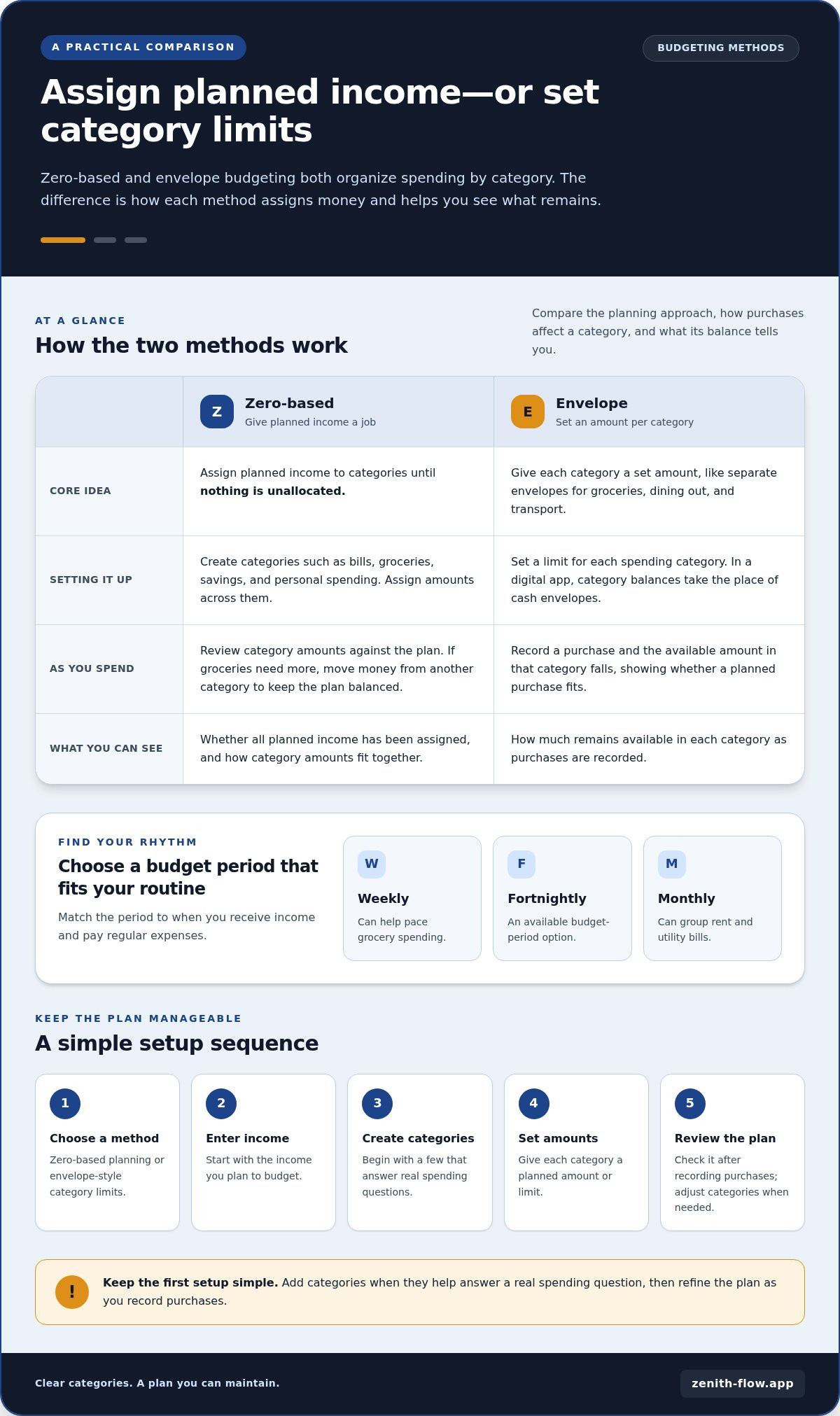
Choose a method you can stick with, then organize categories around your regular spending. Set a budget period, add income and planned expenses, and decide how you’ll handle each category when plans change.
Zero-based budgeting gives every part of your planned income a job. Add categories for bills, groceries, savings, and personal spending, then assign amounts until nothing is unallocated. If your grocery budget needs adjusting, move money from another category to keep the plan balanced. A good planner makes category amounts easy to review and change.
Envelope budgeting assigns a set amount to each spending category. Picture separate envelopes for groceries, dining out, and transport. A digital version uses category balances instead of cash envelopes. As you record purchases, the available amount in that category falls, making it easier to see whether a planned purchase fits.
Some apps offer weekly, fortnightly, or monthly budgets. Choose a period that matches how you receive income and pay regular expenses. For example, a monthly budget can group rent and utility bills, while a weekly view can help pace grocery spending. Check whether you can adjust categories without rebuilding the whole plan.
To choose and set up an iPhone app, decide whether you prefer zero-based budgeting or envelope-style category limits. Then enter your income, create a few useful categories, set their amounts, and review the plan after recording purchases. Keep the initial setup simple, adding categories when they help answer a real spending question.
If you want to plan around upcoming obligations before deciding what’s available to spend, account for upcoming expenses as part of your routine.
App prices, free tiers, and trials
Compare what each payment option includes, not just its label. Free plans, subscriptions, and trials offer different ways to try an app.
App Pricing
Budgeting apps may use subscriptions or other payment arrangements. Compare the billing period, included features, and what happens if you stop paying. Some apps offer a yearly subscription, so consider whether that commitment suits your routine. Also compare paid tools with your actual needs: advanced reports may matter less than dependable category tracking.
Read the renewal terms before choosing a plan. Budget app subscriptions renew automatically unless auto-renew is turned off at least 24 hours before the current period ends. Note that timing alongside your renewal date, and decide whether you want the app to continue before that point.
Free-Tier Options
A free plan can be enough if it covers your regular budgeting needs. Some free plans include weekly, fortnightly, or monthly budgets, as well as offline mode and syncing across devices. Match the budget period to your pay schedule, then check whether the free tools support your categories, such as groceries and bills.
Test a free plan with a typical week: enter a purchase, review a category balance, and check the next budget period. This shows whether any limits affect your routine. Pay attention to which functions remain available without payment instead of assuming every feature is included.
Trial Periods
If an app offers a trial, use it to test the features you would rely on afterward. Set up a sample budget, review spending categories, and try any paid reports. Before starting, read the trial’s end date, renewal terms, and cancellation steps. This helps you decide without mistaking temporary access for an ongoing free plan.
Keep a simple comparison as you evaluate apps: note the payment structure, free features, trial conditions, and renewal timing. This makes it easier to choose an app that fits your budgeting habits and comfort with recurring payments.
Rollover budgets and spending insights
Rollover settings determine what happens to unused or overspent category money. Spending insights help explain where your plan differs from actual purchases.
Rollover Budget Features
A rollover carries a category’s remaining balance into the next budget period. For example, unused grocery money could stay available for a later shop. This can suit expenses that vary from week to week, but it changes how much you can spend in the next period.
Check whether rollover applies to every category or only selected ones. You might carry savings forward while setting a fresh dining-out limit each period. Also check how the app handles overspending: it may reduce the next period’s category balance or show the shortfall separately. These rules affect your plan, so test them with a sample category before relying on the total.
Rollover can smooth uneven costs, but it should not hide repeated overspending. Review the carried balance at each reset and adjust the category when your spending pattern changes.
Spending Insight Tools
Useful insights connect purchases to patterns. A category view can show whether grocery spending is rising, while a time-based view can reveal when charges tend to arrive. Compare planned amounts with recorded purchases, then look for a practical cause, such as several takeout meals during a busy week.
Try a simple review: open the category breakdown, compare it with the previous budget period, and identify one useful change. A calendar view can place purchases alongside bill dates. Analytics can add detail, but clear labels and accurate categories matter more than a crowded dashboard.
Check whether the app lets you correct a category or note. If a grocery purchase is misclassified as dining out, the resulting insight could point you toward the wrong adjustment. Accurate entries make trends easier to interpret.
Choose rollover rules that match your real expenses, then review insights at each budget reset. Explore a clearer view of upcoming spending as you decide what your available balance needs to cover.
Zenith Flow: Zenith Flow
Zenith Flow helps you see what is available after accounting for upcoming obligations and savings. Its available-spending figure and spending index show your current position, while the upcoming-expenses view organizes recurring costs. It can suit you if a standard budget tracker leaves you unsure how upcoming bills affect what you can spend today.
Zenith Flow’s essential features are free. A one-time payment unlocks Zenith Flow Plus, including the advanced simulator, without a subscription. Four free widgets keep key information visible. The app is available for iPhone, iPad, and Mac, so you can use the device that fits your routine.
Visit zenith-flow.app to explore Zenith Flow and see whether its approach suits the way you plan.
Make your next money check-in simpler
The best budgeting app for iPhone is the one you’ll keep using, not the one with the longest feature list. Choose a routine you can maintain: review your available spending before a planned purchase, then take a moment at the end of the week to notice what changed. A steady habit can make your budget more useful without turning money management into another big task.
Leave room to adjust. If a category does not match your real spending, rename or reshape it. Useful insights can come from a simple pattern, not just a detailed report. The aim is not to make every week identical, but to make your choices clearer as obligations and priorities shift.
If you’d like to explore an app built around a clearer view of your available spending, visit Zenith Flow. Take the next step at your own pace and choose a routine that feels manageable.
Frequently Asked Questions
Which iPhone budgeting apps are free, and what features do they include?
Free plans can include budget periods, transaction tracking, and offline access, but features vary by app. Some include weekly, fortnightly, or monthly budgets, recurring and upcoming transactions, and syncing across devices. Before choosing, compare category limits and transaction-entry options. For example, consider whether the app supports how you record cash purchases as well as card spending.
How much do popular budgeting apps for iPhone cost per month or year?
App costs depend on the plan and billing period, so compare each app’s current monthly and annual terms before subscribing. Check whether the listed amount renews automatically and what happens when you cancel. For subscriptions, auto-renew must be turned off at least 24 hours before the current period ends. A longer billing period may change the overall commitment, even when the monthly equivalent looks lower.
Which budgeting apps for iPhone connect securely to US banks and credit cards?
Account connections and privacy protections vary by app, so no single list can establish which option is right for everyone. Review the app’s privacy disclosures and account permissions before linking a US bank or credit card. Manual entry is another way to track spending if you prefer not to connect accounts. Link only the accounts you need for your budget.
How do iPhone budgeting apps compare for envelope budgeting, zero-based budgeting, and expense tracking?
Envelope tools track category balances, while zero-based tools help assign planned income across categories. Expense tracking records purchases so those balances reflect what you spend. To compare apps, create a sample plan with groceries, bills, and dining out. Record a purchase and see whether the remaining category amount is easy to understand and adjust.
Are there budgeting apps for iPhone with no ads or subscription fees?
Apps may offer free access, one-time purchases, subscriptions, or advertising, and these are separate considerations. A free plan does not necessarily mean an app includes ads. Zenith Flow’s essential features are free, while Zenith Flow Plus is unlocked with a one-time payment, not a subscription. Review payment terms and the ad policy separately to understand an app’s ongoing costs and experience.
What privacy and security protections do budgeting apps for iPhone offer?
Before linking accounts, review the app’s privacy policy, connection permissions, and available sign-in protections. You can also choose which accounts to link.