

A budget app can be a sensible alternative to spreadsheets when its security practices are clear. Look for AES 128-bit or 256-bit encryption and multi-factor authentication, then weigh that protection alongside the way you want to manage your money. A familiar spreadsheet may feel simpler, but it still takes regular upkeep to keep a useful picture of what’s coming and what’s available.
If you’ve been tracking bills, spending, and savings by hand, you know the trade-off: spreadsheets are flexible, but you have to update them yourself. A budget app alternative to spreadsheets can bring those moving parts together, but it’s worth checking how well an app fits your routine and protects your information.
This guide compares spreadsheets and budgeting apps for security, upkeep, and planning ahead. You’ll learn what to look for in an app, when a spreadsheet may still work better, and how to choose a manageable way to keep your budget in view.
Key Takeaways
- Use transaction categories as a way to spot spending patterns, and review them so your budget reflects what each purchase was for.
- Compare spreadsheet flexibility with the effort of keeping formulas, recurring bills, and changes organized in one place.
- Pair a savings goal with a clear view of upcoming expenses, so you can see how today’s choices affect what you’re setting aside.
- Choose the approach that suits your routine: a spreadsheet for hands-on control, or an app when you want a more guided view of spending and what’s ahead.
Automatic transaction categorization
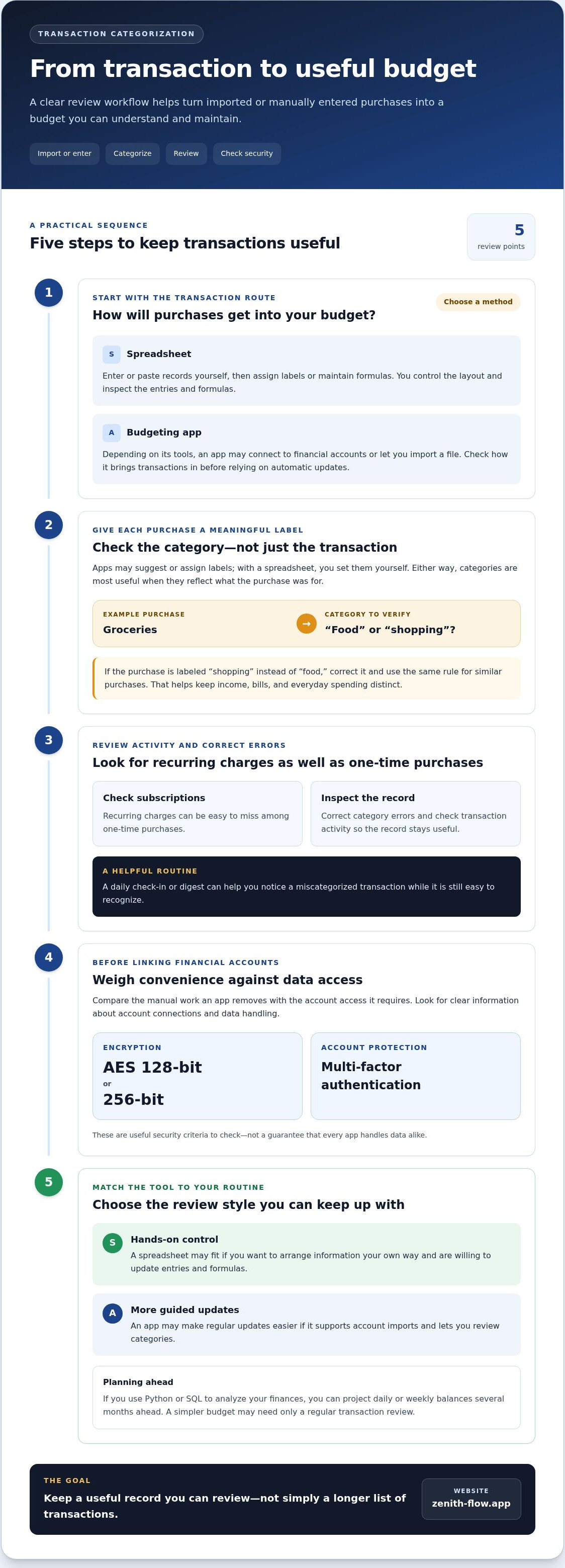
Automatic categorization can reduce manual sorting, but it depends on how transactions get into your budget. Some apps connect to financial accounts and import transactions; others let you import a file. With a spreadsheet, you usually enter or paste each purchase and assign labels yourself. The goal is a useful record you can review, not simply a longer list of transactions.
For example, a grocery purchase might be categorized as “shopping” instead of “food.” Review the category, correct it, and apply the same rule to similar purchases. This keeps income, bills, and everyday spending distinct. Check how the app handles subscriptions, too: recurring charges are easy to miss among one-time purchases.
Before choosing automated financial data ingestion, compare the work it removes with the access it requires. Look for clear information about account connections, data handling, AES 128-bit or 256-bit encryption, and multi-factor authentication. These are useful security criteria, not a guarantee that every app handles data alike. A daily check-in or digest can also help you catch a miscategorized transaction while it’s still easy to recognize.
| Option | Transaction import | Categorization | Review |
|---|---|---|---|
| Spreadsheet | Enter or paste records | Set labels or formulas yourself | Inspect entries and formulas |
| Budgeting app | Connect accounts or import, depending on its tools | Review suggested or assigned labels | Correct errors and check activity |
Choose a tool that fits your routine. A spreadsheet gives you hands-on control; an app may make regular updates easier if it supports account imports and lets you review categories. If you use Python or SQL to analyze your finances, you can project daily or weekly balances several months ahead. A simpler budget may need only a regular review of transactions.
What should you know about budgeting app vs spreadsheet?
A spreadsheet lets you control the layout, while an app may streamline routine tasks. Compare availability, features, and the ongoing effort each option requires.
Spreadsheet Availability and Free Options
Google Sheets is one option for organizing income, bills, and spending in a grid. A free spreadsheet may be enough to get started, and a custom workbook lets you create columns for due dates, categories, or notes. You’re responsible for entering transactions and maintaining formulas. For instance, a monthly tab can separate recurring bills from one-time costs.
Think about where you’ll use the tool: on a phone, a computer, or both. A spreadsheet is useful if you want to arrange information your own way, while an app may offer a more guided layout. Before moving your records, check that your chosen tool works across the devices you use.
Free and Paid App Features
Budgeting apps vary in what they include in free and paid plans. Compare the tasks each plan supports, such as recording purchases, creating reports, or setting categories. A budget app alternative to spreadsheets may suit you if its included tools reduce the manual upkeep you want to avoid.
Payment terms vary, too. A monthly plan, an annual plan, and a free trial are different arrangements, so read the terms before relying on a paid feature. If custom categories matter, for example, check that they’re included in the plan you choose. Focus on features you’ll use regularly rather than a long list of extras.
Manual Entries and Custom Categories
Some budgeting apps support manual transaction entry and custom categories. Look for both in the app’s settings. You could enter a cash purchase and label it “household supplies,” just as you would in a spreadsheet. A budget app alternative to spreadsheets can preserve that flexibility in an app interface.
Try a simple test: enter a sample expense, give it a custom label, and edit the entry. Consider whether the process fits your routine and devices. Review the app’s details in Google Play or the App Store for platform information, then choose the method you’ll find easy to use consistently.
Savings goals and spending insights
A useful budget links today’s spending to the goals you’re working toward. Compare how each tool tracks savings, debts, and changes over time.
For bill reminders, savings goals, and debt payoff tracking in the US, choose a budgeting app that explicitly includes all three. Check whether reminders can match your bill dates and whether you can review debt balances and savings progress separately.
Savings Goals and Debt Payoff
For a savings goal, record its purpose and track contributions against the amount you hope to set aside. For debt payoff, track each balance separately so payments and remaining amounts stay visible. These serve different purposes: a savings tracker shows progress toward money set aside, while debt tracking shows what you still owe. If you budget with a partner, agree on which goals and debts belong in your shared view.
Spending and Net-Worth Tracking
Spending tracking shows where your money goes, such as groceries, subscriptions, or household bills. Net worth offers a broader view by comparing assets with debts, answering a different question from a spending list. In a spreadsheet, you can create separate tabs for each view and update them yourself. An app may organize information automatically, depending on its features and the accounts you include.
Spending Reports and Analysis
Reports can turn a record of purchases into patterns you can act on. Compare grocery spending across periods or see whether recurring costs leave less for savings. Consumer finance apps typically report on the current month or, at most, a rolling year. A spreadsheet can preserve older versions for longer-term comparisons, but you’ll need to maintain its categories and formulas. Use the same categories each period to make comparisons meaningful.
Budgeting apps as alternatives to spreadsheets
An app can organize your personal finance routine, while a spreadsheet gives you more freedom to shape it. Compare the budgeting approach, device access, and sharing features before moving your records.
For zero-based budgeting, envelope budgeting, or cash-flow planning, choose an app that explicitly supports your preferred method. Check how it handles categories, savings goals, and upcoming bills.
If you need access on iPhone, Android, and the web, choose an app whose product details list all three. Device support varies, so don’t assume an iPhone app also works on Android or in a browser.
For couples or shared household budgets, look for shared access and a clear way to separate household costs from personal spending. The right fit is one both people can use consistently.
IPhone, Android, and Web Access
Cross-device access matters if you enter a grocery purchase on your phone and review reports on a computer. Confirm that the same budget and categories are available on each platform instead of assuming the mobile app and web version stay in sync.
Consider what happens when one person changes a category or updates a savings goal. A consistent view across devices can make those changes easier to follow. A spreadsheet may suit you better if you prefer to control the file and its layout.
Couples and Shared Household Budgets
A shared budget needs more than a combined total. Partners may want to track household groceries and rent together while keeping individual purchases separate. Look for clear shared categories and reports that help both people understand the same plan.
Zero-based budgeting assigns planned income to categories, while envelope budgeting sets spending limits by purpose. Cash-flow planning focuses on when money comes in and bills go out. Choose the method that answers your household’s main question, then agree on how to record shared costs.
If a flexible view of upcoming obligations would help you plan, explore a calmer way to plan. Keep the comparison practical: write down the budget method you want, the devices you use, and whether household sharing matters. That short list can guide your choice without adding features you won’t use.
Zenith Flow: Zenith Flow
Zenith Flow can help if maintaining spreadsheet formulas makes it difficult to see what’s available. It calculates how much you can spend after accounting for upcoming commitments and savings, so you can look beyond your current balance.
Its available-to-spend view, recurring expenses area, and Zenith Index bring different parts of your plan into view. Four free widgets give you quick access to key information on your Apple devices. Essential features are free; Zenith Flow Plus adds the Plus Simulator for a one-time payment, with no subscription.
Choose Zenith Flow if you want a guided view of upcoming expenses and savings without maintaining a custom workbook. A spreadsheet may be a better fit if you prefer to build every formula and category yourself.
Explore Zenith Flow for a steadier way to plan your spending.
Choose a Routine You’ll Keep Using
You don’t need to change everything at once. Start with the part of your routine that’s hardest to maintain, such as planning around upcoming expenses, and use it to judge whether your current setup still works. A spreadsheet remains a sound choice when you want to shape every detail. A budget app alternative to spreadsheets may suit you better if you want a clearer view with less manual upkeep.
Give yourself time to settle into whichever method you choose. Keep your categories familiar, review your plan regularly, and adjust it as your household’s needs change. The aim isn’t a perfect budget; it’s making everyday decisions with a clearer sense of what’s available.
If you’d like to explore a more guided way to plan, visit Zenith Flow. Start with the view that feels easiest to return to, and let your routine become clearer one decision at a time.
Frequently Asked Questions
Are budget apps secure?
Budget apps can be secure, but compare the protections and controls each one offers. Before connecting an account, read the privacy information, find out what data the app accesses, and check whether you can revoke that access. Use a unique password and a device passcode, and enable multi-factor authentication when available. Your habits matter, too: keep your phone and app updated.
What information do I need to make a budget?
Start with your take-home income, bill due dates, recurring charges, savings commitments, and debts. Gather a recent pay statement, utility bills, rent details, and card balances, then list each amount alongside its timing. For irregular costs, use past receipts or statements to estimate a typical month. Separate essential obligations from flexible spending so your first plan reflects real choices rather than guesses.
What are the best budget apps for replacing spreadsheets in the US?
The best fit depends on your device and the planning style you want. iPhone, iPad, and Mac users can consider Zenith Flow for available-to-spend planning. It is currently available through TestFlight, with App Store arrival expected between December 2026 and January 2027. If you need Android or web access, choose an app designed for those platforms instead.
Which budgeting apps are free or have the lowest subscription cost?
Apps with a published free tier are a practical starting point if you want to avoid recurring charges. To compare costs, check which features are free, how upgrades are billed, and whether a trial renews automatically. Focus on the tasks you need, such as manual entry or reports. A low monthly fee may not suit you if essential tools require an upgrade.
Which budget apps automatically sync with US banks and credit cards?
Choose an app that lists your specific US bank and account type as supported. Before linking an account, review the requested access and look for a transaction view that shows when activity last refreshed. If a purchase is missing, compare the app’s record with your bank statement before editing your budget. Account support varies, so check the institution’s name rather than relying on a general sync claim.
Are budget apps safe, and how do they protect financial data?
Protect financial data by limiting the accounts you connect and reviewing permissions regularly. Use a unique password, secure your phone with a passcode, and avoid entering account details through unexpected messages or links. If you stop using an app, remove its account access and follow its account-closure process. These steps can reduce unnecessary exposure, but no single setting replaces careful use.
