

A portfolio can feel complicated before you own a single share. A personal finance app can help you record investments, follow their value, and view stock and market quotes in one place. The key is to treat a quote as a snapshot, not a complete picture of what your portfolio is worth.
It’s reasonable to want a clear view of your money without turning tracking into a daily chore. A useful setup helps you see what you hold, follow changes over time, and keep investment records in context with the rest of your finances. This article explains how to record a portfolio, what to consider when tracking it, and how to interpret market quotes. It also covers the limits of app-based tracking, so you can use the information thoughtfully.
Key Takeaways
- Build a clear portfolio record by listing what you hold and keeping its value separate from the price shown in a market quote.
- Compare finance apps by the tools you need, such as investment tracking, quote viewing, and budgeting, rather than by feature count alone.
- Before connecting accounts, understand how automatic transaction updates fit into your routine and how you prefer to review spending.
- For a calmer view of available spending after upcoming obligations and savings, Zenith Flow offers a different focus from investment tracking.
Portfolio creation and tracking
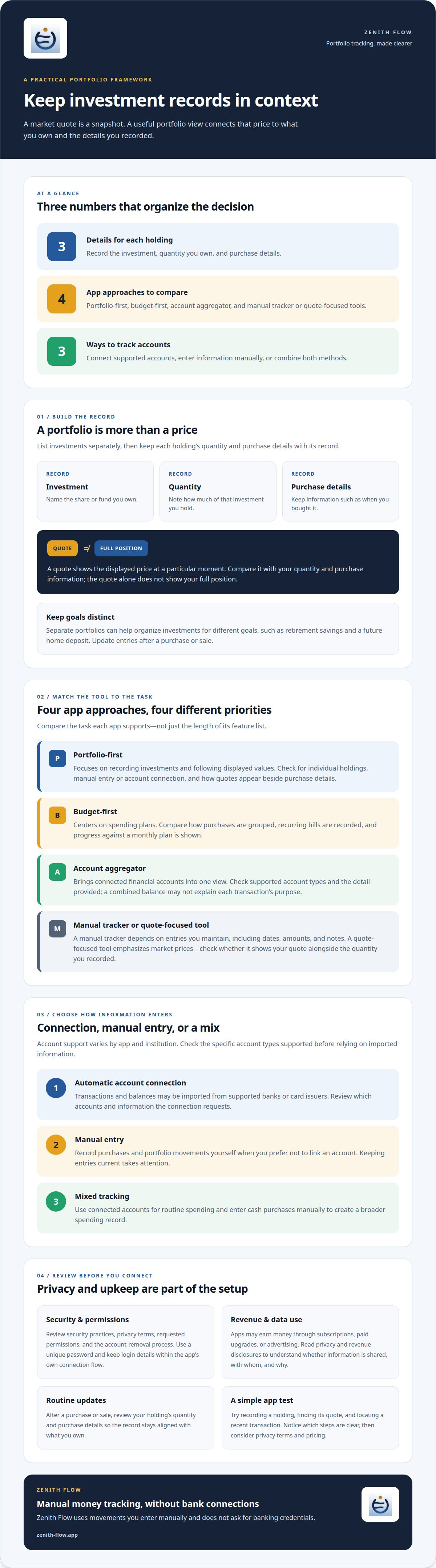
A portfolio is a record of investments you own, such as shares or funds. To create one, list each investment, its quantity, and purchase details. For example, record how many shares you hold and when you bought them. Keep separate portfolios for different goals, such as retirement savings and a future home deposit. A personal finance app can help organize these records, but entries need updating when your holdings change.
A holding is one investment listed within your portfolio. Add each holding separately, then review its quantity and purchase details after a purchase or sale. A market quote is the displayed price of an investment at a particular moment. A personal finance app may show quotes alongside your records, but a quote alone doesn't show your full position. Compare it with the quantity you own and your recorded purchase information.
Some apps combine investment tracking with bill reminders, savings goals, and debt payoff tools. Check the app’s feature descriptions to see what each tool actually does. A reminder can help you notice an upcoming bill, while a savings goal gives you a target to follow. Debt payoff tools may help organize balances and payments, depending on the app.
Some apps connect to financial accounts to display account information. If you use an app with account linking, follow its setup instructions and review which accounts and information the connection covers. You can also record portfolio details manually and update them after purchases or sales. Zenith Flow does not connect to banks: you enter movements manually, and the app never asks for banking credentials.
Data protection means the measures an app uses to guard personal and financial information. Before connecting an account, review the app’s security practices, privacy terms, permissions, and account-removal process. Use a unique password, and avoid sharing login details outside the app’s own connection flow. These checks help you decide what information to share.
An app’s revenue model describes how it earns money. Some apps may use subscriptions, paid upgrades, or advertising; data-sharing practices vary. Read the privacy policy and revenue disclosures to understand whether information is shared, with whom, and why. A personal finance app should make these details clear enough for you to decide whether its features and data practices suit your needs.
How do popular personal finance apps compare?
Compare apps based on the task you need help with, such as recording investments, planning spending, or tracking transactions. Consider whether you need market quotes, manual entry, privacy controls, or a particular pricing model. Someone tracking shares may prioritize portfolio records, while someone organizing household bills may care more about recurring expenses and available spending.
A portfolio-first app focuses on recording investments and following their displayed values. Check whether it lets you enter holdings manually or connect investment accounts, then review how it presents quotes, purchase details, and changes over time. If you own shares in different companies, a clear list of individual holdings can be more useful than a single account total.
- A budget-first app centers on spending plans. Compare how it groups purchases, records recurring bills, and shows progress against a monthly plan. For example, check whether groceries and transport appear as separate categories.
- An account aggregator brings information from connected financial accounts into one view. Compare supported account types and the detail shown for each connection. A combined balance can be convenient, but it may not explain each transaction’s purpose.
- A manual tracker relies on entries you add yourself. Compare its fields for dates, amounts, and notes. It can suit a simple portfolio or cash record, though keeping entries current takes regular attention.
- A quote-focused tool emphasizes market prices. Compare which holdings it displays and whether you can see the quote alongside your recorded quantity. A price alone doesn’t show the full value of your position.
Before choosing an app, try the same task in each one: record a holding, find its quote, and locate a recent transaction. Note which steps are clear and which take extra effort. Then review the privacy terms and pricing model. The best fit is the app that supports your regular routine, not necessarily the one with the longest feature list.
Which personal finance apps connect to US banks and credit cards?
Some apps import information from participating financial institutions, but support varies by app and account. Check the app’s current details to see whether it supports the accounts you use. A bank’s name appearing in a list does not necessarily mean every account type is supported. Zenith Flow does not link to banks; it works with movements you enter manually.
A linked checking account or credit card may bring transactions and balances into one view, depending on the app and connection. If you use several accounts, check whether each is supported before relying on imported data. With manual tracking, you enter movements yourself, so you can record the accounts and cards you want to follow without connecting them.
- Automatic account connection: Choose this when you want transactions imported from supported banks or card issuers. Review the accounts and information the connection requests.
- Manual entry: Choose this when you prefer not to link an account. Record purchases yourself, such as a grocery charge on a credit card.
- Mixed tracking: Use connected accounts for routine spending, then enter cash purchases manually. This can give you a broader spending record.
To test a connection, open the app’s account section and search for your institution. Select it only through the app’s stated connection process, then follow the prompts. Check whether the account appears and whether recent transactions display. If a credit card is missing, review the institution name and account type; a similarly named institution may be different.
Connection convenience is only one part of the choice. Check how the app describes imported transactions, account access, data use, and removal. For example, confirm that you can disconnect a card if you stop using the app. If you don’t want account linking, select an app that supports manual records. That keeps the choice practical: link the accounts you want to track, and enter the rest yourself.
How do budgeting and spending-tracking apps work?
A budget assigns income to expenses, savings, and other priorities. In an app, you can set category limits, such as for groceries or transport, then compare recorded spending with those limits. Spending tracking means recording purchases and grouping them by purpose. For instance, you might categorize a supermarket purchase as groceries.
Start by choosing categories that match your household routine. Add regular costs, such as rent, utilities, and subscriptions, then include flexible spending, such as meals out. If transactions import automatically, review their categories for errors. If you enter purchases yourself, record them soon after paying. Accurate categories make the monthly picture more useful.
- Set a plan: Assign expected income to bills, everyday costs, and savings. Use categories you can recognize at a glance.
- Record activity: Connect an account or enter purchases manually. Include cash spending if you want a fuller record.
- Review changes: Compare actual spending with your plan. If a grocery category runs high, check which purchases drove the difference.
- Adjust deliberately: Move funds between categories when priorities change. Keep the reason visible, such as a higher utility bill.
A recurring expense is a payment that repeats, such as a subscription or utility bill. Recording its timing helps you account for upcoming obligations before planning optional spending. Cash flow describes money moving in and out over time. Looking at income alongside scheduled bills gives more context than a category total alone. A month with several annual renewals can look quite different from a month of routine expenses.
Use a short review to keep the plan connected to real life: check recent purchases, upcoming bills, and savings progress. A budget is a guide, not a record of what happened. Tracking shows the difference between the plan and actual spending, so you can adjust the next decision. To see how upcoming commitments and savings shape available spending, explore a calmer spending plan.
Zenith Flow: Zenith Flow
Zenith Flow helps you see what you can spend after accounting for upcoming commitments and savings. It focuses on everyday financial planning, not portfolio quotes or investment management. Use it when you want a clearer view of available spending alongside recurring expenses.
Its core features include Available, the Zenith Index, recurring expense tracking, and four free widgets. Zenith Flow Plus adds the Plus Simulator for exploring financial scenarios. Essential features are free, and Plus unlocks with a one-time payment rather than a subscription.
If you need to track investments and market quotes, use a tool suited to that task. Zenith Flow can complement your routine by helping you account for upcoming obligations and savings before deciding what remains available to spend.
Visit Zenith Flow’s website to explore the app.
Choose a steadier next step
Your next step doesn’t need to be a complete financial overhaul. Start with one decision you want to make more clearly, such as whether a planned purchase fits alongside your regular commitments. Decide what information would help and how often you’ll review it. A personal finance app is most useful when it supports a routine you can maintain.
Keep market information in perspective. A changing quote can catch your attention, but your plans and time horizon matter when deciding what to do. Take time to review the numbers before acting. If everyday spending is what you want to manage more clearly, Zenith Flow can help you see what remains after upcoming commitments and savings.
Contact Zenith Flow to discuss your needs, and take the next step at a pace that feels right for you.
Frequently Asked Questions
What features should a personal finance app include?
A personal finance app should support the money decisions you make regularly. Look for clear records, useful categories, and a way to review upcoming expenses. If you’re planning for a future purchase, savings goals can help you follow progress. If you manage investments, portfolio records and market quotes may matter more. Choose tools you’ll use, rather than adding complexity for occasional tasks.
What are the best personal finance apps in the US?
There isn’t one best app for everyone in the US; the right fit depends on your priorities. For example, Zenith Flow focuses on calculating available spending after upcoming commitments and savings, rather than connecting to banks or managing investments. It’s designed for iPhone, iPad, and Mac. Consider it if you want hands-on financial planning without bank linking, and compare other options against your own needs.
What should you consider when choosing a personal finance app?
Consider how you’ll use the app each week, what information you’re comfortable entering, and how its business model works. Try a typical task, such as recording a grocery purchase or reviewing an upcoming bill. Notice whether the steps feel clear and whether you can correct an entry. Before creating a routine, read the privacy terms and understand what happens to your data if you stop using the app.


